| Prev | ICM User's Guide 6.4 Coloring | Next |
[ Coloring | Color Background | Background Image ]
| Available in the following product(s): ICM-Browser | ICM-Browser-Pro | ICM-Pro |
To change the coloring of molecules:
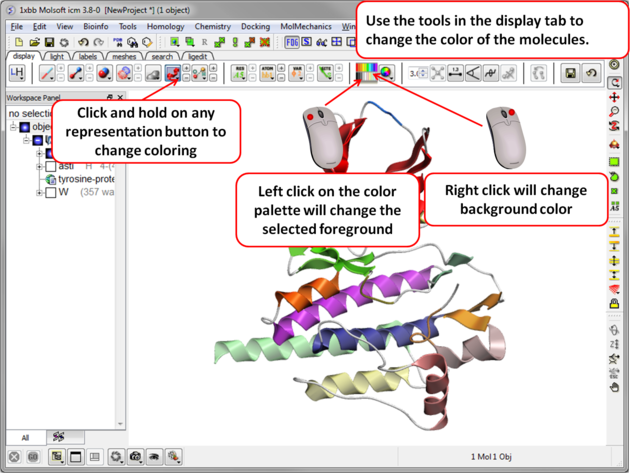
- Select the atoms, residues, molecules, or objects you wish to color in the graphical display or in the ICM Workspace.
- Then use the color options in the Display Tab.
6.4.1 Coloring |
To change the color of a structural representation such as CPK, Xstick, wire or ribbon.
- Select the atoms, residues, molecules, or objects you wish to color.
- Click and hold on the structural representation button for the representation you wish to color (e.g. wire, ribbon etc...) in the Display tab.
- Select a color by clicking color.
To color by a particular parameter such as atom type, b-factor, secondary structure etc...
- Click and hold on the structural representation button for the representation you wish to color (e.g. wire, ribbon etc...) in the Display tab.
- Select ..by-> option
To change the color of everything displayed :
-
Click on the color palette in the Display Tab.
6.4.2 Color Background |
To change the color of the background:
- Select View/Color background.
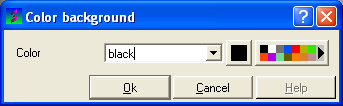
- Click on the square of your desired color. If you are not satisfied with the color palate, click on the arrow next to the colors to customize a color.
OR
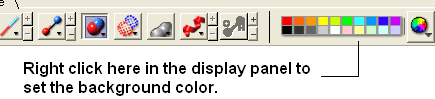
- Right click on a color in the colors panel in the display tab.
6.4.3 Background Image |
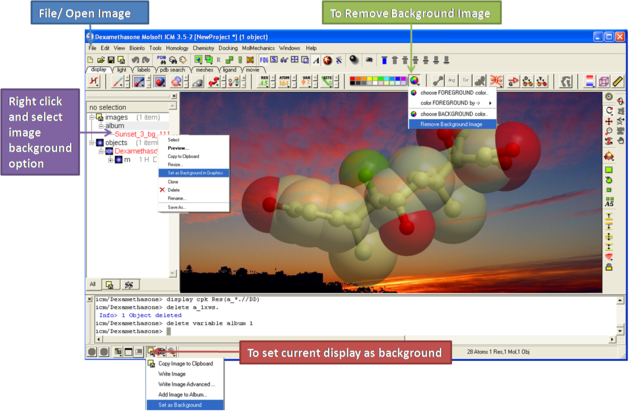
A background image can be added to the graphical display. This can be useful for making cool images or for comparing structures (e.g.compare displayed object with background image of object).
To add a background image from an image file (png or jpeg):
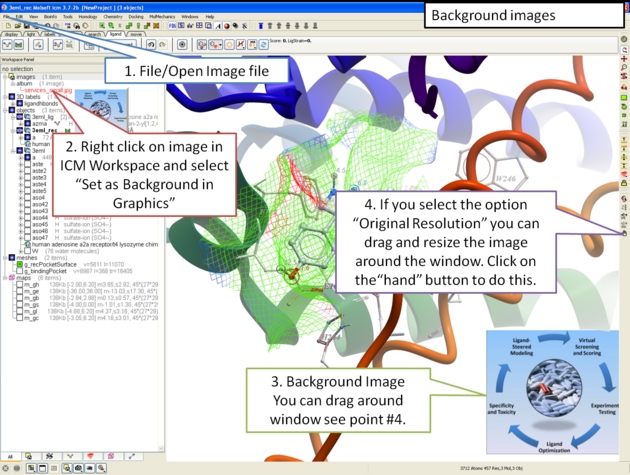
- File/Open Image
- Right click on the image in the ICM Workspace and select "Set as Background in Graphics."
- Choose one of the following: (1) Original Resolution, (2) Original Resolution Centered, or (3) Scale to Fit
- Enter the Scale (%)
- Enter whether you want to keep existing background.
To move and resize a background image: Version 3.7-2b and higher.
- File/Open Image
- Right click on the image in the ICM Workspace and select "Set as Background in Graphics."
- Choose the option Original Resolution.
- Click on the drag atom button (looks like a hand).
- Click and drag image.
- Remember to deselect drag atom button.
To set current display as background image:
- Click and hold on the "Copy Image to Clipboard" button at the bottom of the gui and select the "Set as Background" option.
To remove a background image:
- Select the display tab and then click and hold on the color sphere button and select "Remove Background Image".
OR
- Right click on the image in the ICM Workspace and select "Set as Background in Graphics."
- Choose the option Remove From Background
| Prev Occlusion | Home Up | Next Lighting |