[ Make a Hitlist ]
Docking results can also be visualized and browsed in one of the following ways.
- Docking/Browse/Scan Hits - If you have docked a multi-ligand file (eg SDF) or if you want to go back and see a single docked structure you can scan the structures using this option.
- Docking/Browse/Stack Conformation - View other possible conformations for the docked ligand ranked by energy.
- Docking/Make Hit List - Rank docked compounds by ICM Docking Score Only available with ICM-VLS
The results of the docking are saved in the following files
PROJECTNAME_LIGANDNAME.ob #icm-object file with best solutions for each ligand
PROJECTNAME_*.cnf         #icm conformational stack files with multiple docked conf.
The results of the docking job using ICM-VLS (separate license required) are saved in the following files:
PROJECTNAME_answers*.ob  #icm-object file with best solutions for each ligand
PROJECTNAME_*.cnf        # icm conformational stack files with multiple docked conf.
PROJECTNAME_*.ou # output file where various messages are stored eg.SCORE[ Hitlist Column Guide | Analyzing the Hitlist | Hitlist Export | Reload | Displaying Docking Results | SDF to Hitlist ]
A Hitlist provides a convenient way to review, rank, and analyze docking results in a chemical spreadsheet. Each row corresponds to a docked ligand and contains the docking score together with additional energetic and molecular properties.To create a Hitlist:
- Select Docking/Make Hit List.
- Enter the docking Project Name.
- Use the browse button to locate the docking results file, typically named PROJECTNAME_answers.ob. A wildcard ` can be used to process multiple answer files, for example _answers.ob`. This is useful when docking has been run using multiple processes, as a separate answer file may be generated for each process.`
- Select 2D/3D by default to display the 2D chemical structure displayed along with the 3D coordinates for each compound in the Hitlist. There are additional options available when creating a Hitlist. For particularly large Hitlists, you may choose to display only the docking scores without importing the 3D coordinates or generating 2D chemical structures. This can significantly reduce the time and memory required to create and work with the Hitlist.
- Select Select Top Hits and enter a value in the corresponding box to create a Hitlist containing only the top N ranked compounds.
- Select Unique if the same compound has been included in multiple docking runs. In this case, only the result with the best docking score will be retained.
- Select Import Original Columns to include columns from the original SDF file used for docking, such as compound ID, catalog number, or other associated properties.
- Click OK to generate the Hitlist.
The resulting Hitlist is displayed as a sortable table containing the docked compounds and their associated docking properties.
A single click on a Hitlist row loads the selected ligand together with the receptor. Once a row is selected, the up and down cursor keys can be used to quickly browse through the docked compounds.
A double click** opens the conformational stack for that ligand, allowing alternative docked poses to be inspected.
The display toggle can be used to quickly show or hide the currently selected ligand pose.
The columns displayed in the Hitlist depend on the ICM license and the type of docking calculation performed.
Hitlist Columns with ICM-VLS
- IX** — Index of the compound in the original docked database.
- Score — The ICM docking score used to rank the compounds. More negative values indicate a more favorable predicted interaction. Scores of approximately -32 or lower** are often considered favorable, although the absolute value is receptor-dependent. For example, exposed binding sites or sites containing metal ions may produce different score ranges.
- Natom — Number of atoms in the docked ligand.
- Nflex — Number of flexible or rotatable torsions in the ligand.
- Hbond — Hydrogen-bond interaction energy. Lower values indicate more favorable hydrogen-bonding interactions.
- Hphob — Hydrophobic contribution associated with exposure of non-polar surface to water. Lower values are more favorable.
- VwInt — Explicit van der Waals interaction energy between the ligand and receptor. Lower values indicate more favorable van der Waals interactions.
- Eintl — Internal conformational strain energy of the ligand. This describes the energetic cost of adopting the docked conformation relative to a low-energy unbound conformation. Lower values are preferred.
The unbound reference is determined by generating an ensemble of low-energy ligand conformations using the MMFF94s force field. The energy of the docked conformation is then compared with the lowest-energy reference conformer using the same force field.
As a general guideline, an Eintl cutoff of approximately 5–10 can be useful when filtering docking results. The appropriate cutoff depends on how restrictive the analysis should be. Some flexibility is advisable because strain-energy estimates contain uncertainty, the receptor is not fully relaxed during docking, and larger ligands may naturally accumulate greater conformational strain.
Eintl also contributes to the physics-based ICM Score**, with a default weighting factor of 0.6.
- Dsolv — Desolvation penalty associated primarily with exposed hydrogen-bond donors and acceptors. Lower values are preferred.
- SolEl — Change in electrostatic solvation energy upon ligand binding. Lower values are more favorable.
- dTSc — Estimated entropy penalty associated with changes in flexible receptor side chains.
- mfScore — Potential of mean force scoring term.
- RTCNN Score — Neural-network-based score used to evaluate the predicted protein-ligand complex. More negative values indicate a more favorable predicted interaction.
- RecConf — Receptor conformation used for the docking pose. This column is present when docking has been performed against multiple receptor conformations, for example using Docking/Flexible Receptor/Setup 4D Grid**.
Hitlist Columns with ICM-Pro without an ICM-VLS License
For standard ICM-Pro docking, the Hitlist reports the grid-based docking energy and its principal components.
- Edoc — Overall grid docking energy. Lower values are more favorable. Edoc combines the receptor-ligand interaction terms listed below together with the ligand internal energy or conformational strain. The values are reported in kcal/mol and are intended primarily for ranking docked poses.
- Egb — Hydrogen-bond grid energy.
- Ege — Electrostatic grid potential.
- Egs — Hydrophobic grid potential.
- Egv — Grid-based van der Waals interaction energy, combining the attractive and repulsive van der Waals grid terms.
Sorting the Results
To sort the Hitlist:
- Single click on the header of the column you wish to sort (e.g. Score) and you will see two arrows - click it toggle the sorting.
- Choose the required sorting direction.
For virtual screening results, the table is commonly sorted by Score**, with the most negative docking scores at the top.
Browsing Docked Compounds
Single-click a row in the Hitlist to load the selected ligand together with its receptor.
Once a row has been selected, use the up and down cursor keys** to move through the Hitlist. The ligand displayed in the 3D window will update as you move from one row to another, providing a convenient way to rapidly inspect the docking results.
Saving a Docked Complex
Once the ligand and receptor are contained in the same object, the complete complex can be saved as a PDB file:
- Right-click on the complex in the ICM Workspace.
- Select Save As**.
- Choose PDB (.pdb, .ent)** as the file type.
- Enter a filename and save the structure.
Viewing Alternative Docked Poses
Each ligand may have multiple docked conformations stored in its conformational stack.
- Double-click a ligand in the Hitlist to open its stack of alternative docked conformations.
- Single-click a row in the stack table, or use the up and down cursor keys, to browse the alternative poses.
- Double-click a stack entry to load that ligand-receptor complex into the ICM Workspace.
Additional Hitlist Analysis
Additional post-docking analysis and visualization tools are available from the Tools panel on the right side of the Hitlist.
These tools can be used to further inspect, filter, visualize, and prioritize compounds after docking.
| NOTE There are a number of post-screening analysis built into the Tools panel on the right hand side of the hitlist. These are described here. |
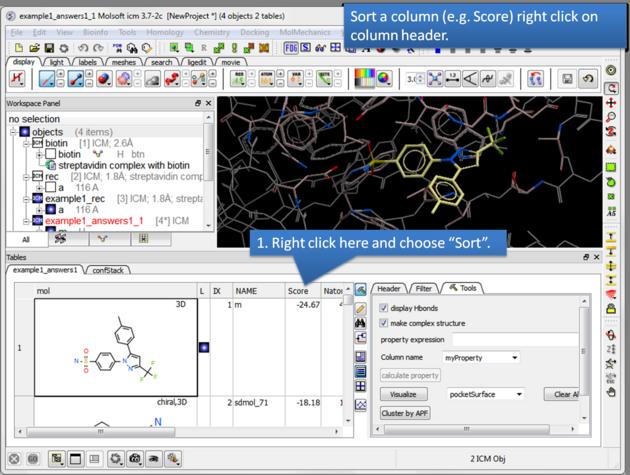 |
| How to sort the hitlist. Right click on a column header and select "Sort". For example you may want to sort by docking score. |
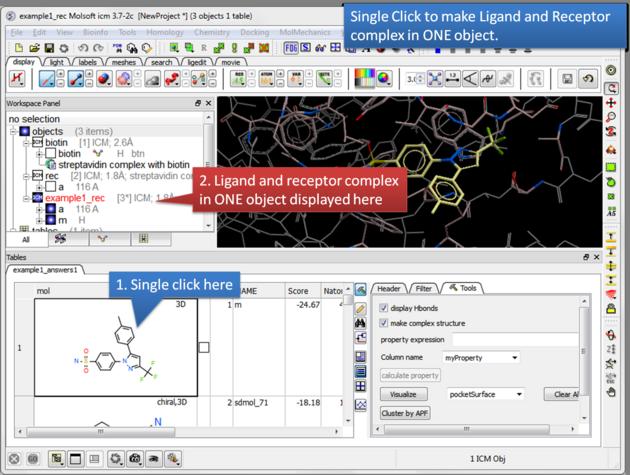 |
| Single click. A single click on a row in the hitlist will load the ligand and receptor complex in one object. |
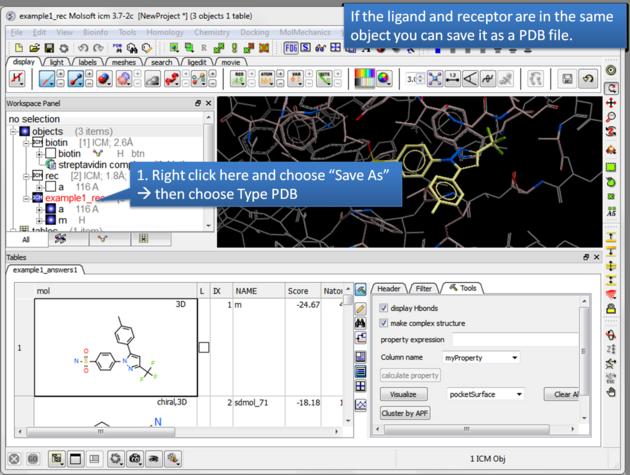 |
| Save a complex as a PDB file. If the ligand and receptor are in the same object you can save them both as a PDB file. Right click on the name of the complex in the ICM Workspace. Select "Save as" and then a Windows dialog window will be displayed. Use the drop down button to select Type PDB (.pdb .ent). |
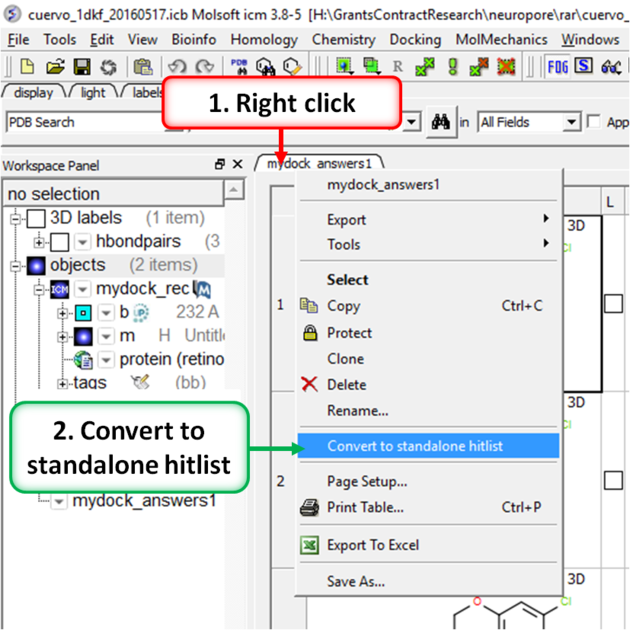
A docking hitlist can be made into a standalone docking project file to share with others and open in locations away from the docking directory. This can be done by:
- Make the docking hitlist Docking/Make Hitlist.
- Right click on the hitlist header tab (see image below).
- Select Convert To Standalone Hitlist
- File/ Save Project and save the project as an .icb file that others can view using ICM or the free ICM-Browser.
To reload a docking project in version 3.7-2 and earlier.
/Docking/Set Project - Type in the Docking Project Name (Case Sensitive)
or in versions above 3.7-2
/Docking/Open Project
Now you can browse scan solutions etc.... and use the maps to dock another ligand.
After docking you will make a hitlist and in the hitlist table there some options to help to display the ligand-receptor complex. These options are in the extra panel section of the hitlist table. Here is how to access them:
- Single click on one row of your hitlist to load the ligand (usually labeled m) into the receptor object (_rec object). You can then use the up and down cursor keys on your keyboard to browse through the chemical table, or single-click individual rows to display specific ligands.
- Click on the Extra panel button on the hitlist.
- Select the Tools tab.
- Go to the Visualizations section and use the drop down button to choose "Pretty View".
- Click on the Visualizations option and the complex will be displayed in "Pretty View".
- When browsing the hitlist you can also mark chemicals as interesting using Mark Row options.
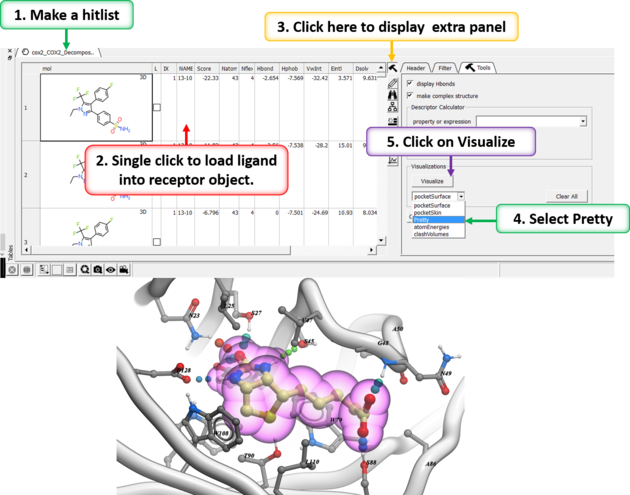
The same panel can be used to display:
- Pocket Surface a mesh representation of the ligand binding pocket colored by properties of the ligand (opposite of pocket skin below). White=aromatic lipophilic, Green=non-aromatic other (mostly aliphatic) lipophilic surface, Red=hydrogen bonding acceptor potential, Blue=hydrogen bond donor potential.
- Pocket Skin - a surface colored by the binding properties of the pocket. White=aromatic lipophilic, Green=non-aromatic other (mostly aliphatic) lipophilic surface, Red=hydrogen bonding acceptor potential, Blue=hydrogen bond donor potential.
- Atom Energies - contribution of each atom to the Docking Score.
- Clash Volumes - highlights any clashes between ligand and receptor.
| Note There are additional display preferences you can set using Docking/Preferences/Display. |
Creating a Hitlist from Pre-Docked 3D Ligands
This example describes how to import pre-docked 3D ligands from an SDF file, associate them with an ICM docking project, convert the table into an ICM Hitlist, and use the Hitlist analysis tools to examine protein-ligand interactions.
A video demonstrating this workflow is available here:
How to make a Docking hitlist from a SDF file containing 3D ligands
Step 1: Import and Convert the Receptor PDB File
- Select File/Open and open the receptor PDB file. [00:00:33]
- Convert the PDB structure into an ICM object. [00:00:47]
- Choose whether you want to keep any water molecules present in the structure.
- Select Replace the Original to replace the original PDB object with the converted ICM object.
Step 2: Load the Pre-Docked 3D Ligands
- Select File/Open and open the SD/SDF file containing the pre-docked 3D ligands. [00:01:03]
- To inspect the ligand poses in 3D, right-click on the mol column header and select Set 3D Browse Mode. [00:01:18]
- Check or uncheck individual ligand rows to toggle their 3D display in the graphics window. [00:01:24]
Step 3: Set Up the Docking Project
A docking project is required so that ICM can associate the imported ligand poses with the appropriate receptor and binding site.
- Select one of the docked ligands in the table to define the approximate location of the binding site. [00:01:40]
- Select Docking/New Project. [00:01:51]
- Enter a name for the docking project, for example outside_doc. [00:01:57]
- Select the receptor from the Receptor Object menu, select Define Site Around Selected Ligand, and click OK. [00:02:07]
- Inspect the resulting docking box and probe placement. If necessary, increase the dimensions of the docking box to ensure that it encompasses the imported ligand poses, particularly when working with larger ligands. [00:02:21]
Step 4: Convert the SDF Table into an ICM Hitlist
The imported SDF table can be converted into an ICM docking Hitlist using the following macro.
- Open the ICM Terminal Window. [00:02:38]
- Enter the following command: [00:02:56]
scanConvertTable2Hitlist [mySDFFileName] [Docking_Project_Name]The macro dialog will open.
- For Table Name, enter the table name containing the imported 3D ligand poses, for example Screen_Hitlist_3D. [00:03:17]
- For Project Name, enter the docking project name , for example MyDock or in youtube example we used "outsideDock". [00:03:22]
- Presse enter to run the command Click OK to convert the table into an ICM Docking Hitlist. [00:03:34]
The resulting Hitlist associates each imported ligand pose with the receptor and docking project, allowing the standard Hitlist visualization and analysis tools to be used.
Step 5: Analyze the Docking Hitlist
Select Windows/Table and open the newly created Hitlist. [00:03:47]
Click the Tools icon on the Hitlist panel to access the available analysis options. [00:03:58]
Interaction Fingerprints and Clustering
Interaction fingerprints provide a compact description of the interactions formed between each ligand pose and the receptor.
- Select the interaction fingerprint property and click Calculate Property to calculate the interaction fingerprints. [00:04:21]
- Select Clustering to group the ligand poses according to the similarity of their protein-ligand interactions. [00:04:30]
- Representative compounds or cluster centers can then be selected and compared using the docking score or other Hitlist properties.
Buried Surface Area and Volume
The Hitlist tools can calculate changes in molecular surface area and volume associated with ligand binding. [00:04:57]
These properties can help identify ligand poses that are well buried within the binding site and provide additional information for comparing alternative poses.
Hydrogen Bond Analysis
Hydrogen-bond properties can be calculated to identify ligands forming interactions with particular receptor atoms or residues. [00:05:06]
- Select the receptor atom or atoms of interest.
- Calculate the appropriate hydrogen-bond property from the Hitlist tools panel.
- The resulting column can be used to identify and rank ligands forming the desired interaction.
APF Pose Similarity
Atomic Property Field (APF) similarity can be used to compare ligand poses with a reference ligand or pocket template. [00:05:25]
This provides an additional method for identifying compounds that reproduce the spatial and physicochemical features of a known or desired binding mode.
Hydrogen-Bond Donors and Acceptors
Properties describing hydrogen-bond donors and acceptors can also be calculated for the ligand and receptor. [00:05:33]
These values can be used together with the other Hitlist properties to help characterize and prioritize the imported docking poses.